No Results Found Steam Cloud and Save Files
Where progress lives, how Steam Cloud syncs, and why a backup beats a magic reset.
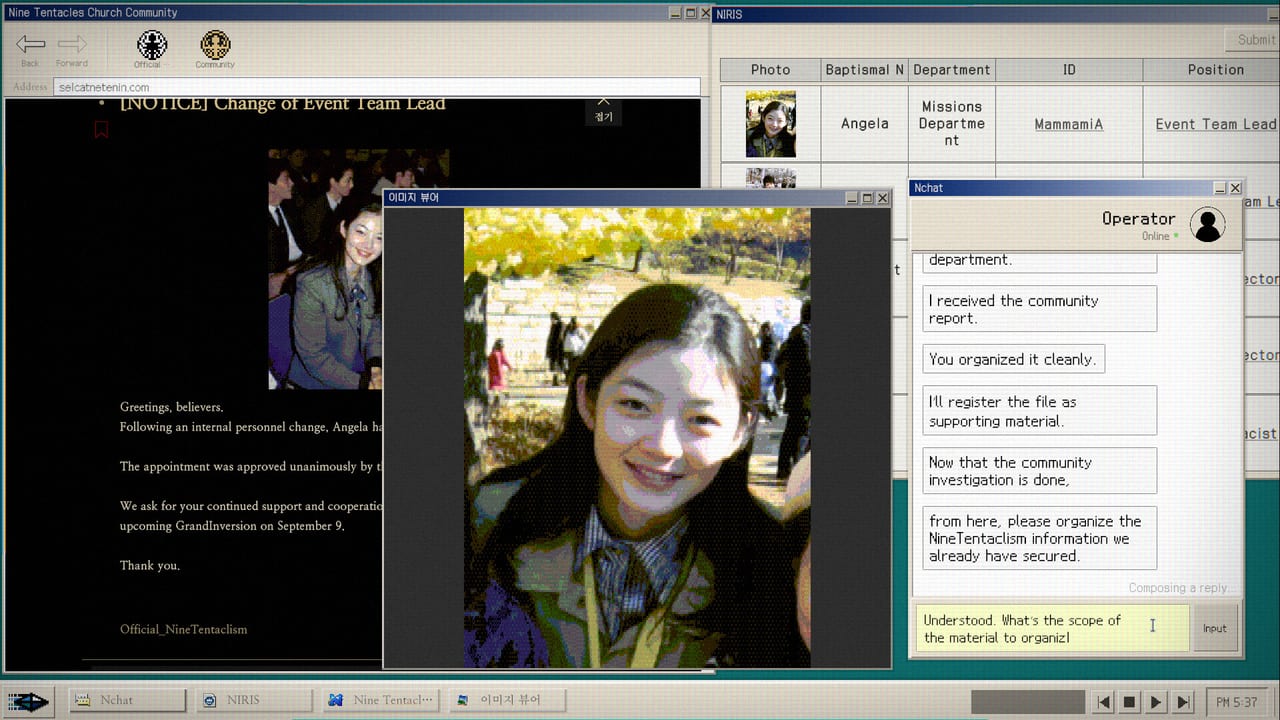
No Results Found is a short single-player mystery, but the save file is still the spine of two endings, ten achievements, and a Dodge high-score chase. This page is the cloud and save file reference the store does not print: where Steam Cloud stores progress, how a local save behaves, what Patch 1.0.2 and Patch 1.1 changed about accepting answers, and how to back up before you start chasing DODGE Master. For the story-mode save rules, stay on Save and Load. For the achievement that needs hundred searches, stay on Achievement Tracker.
Steam Cloud on this title
Steam Cloud is on for No Results Found by default. When you launch the game, the Steam client uploads and downloads a small save bundle keyed to your SteamID. The bundle is tiny (well under a megabyte) because the game is a desk fiction, not a 60-hour RPG. The first run on a new machine downloads the save; subsequent runs push new writes up. The download is silent unless Steam is offline, in which case the client tells you it could not sync and the local save is what plays.
Family Sharing shares the library but not the save. The Steam Family Sharing caveat that matters here is that achievements are bound to the purchasing account, not the borrower. A second player in the household will see the same library entry but a separate save. That is why a household of two players should still label their in-game memo entries with a personal note.
Where the local save actually lives
The local save lives under the Steam userdata folder. The exact path on Windows is C:\Program Files (x86)\Steam\userdata\<your SteamID>\4911390\remote\. macOS users post-Patch 1.2 see the same key under ~/Library/Application Support/Steam/userdata/<your SteamID>/4911390/remote/. The folder contains a small handful of files: a save slot, an autosave shadow, a settings file, and an input bindings JSON. None of them are designed to be opened in a text editor.
If you want to back up before you push toward DODGE Master or start a second ending run, copy the entire 4911390 folder to a separate drive. There is no in-game export and no developer-supplied tool. The Steam client will overwrite the local save on next launch if Cloud sync is enabled. If Cloud is paused (Steam > Settings > Cloud > Enable Steam Cloud synchronization in applications that support it is unchecked for this game), your local copy is what plays, and the backup stays clean.
What is inside a save slot
A No Results Found save slot tracks: which windows you have opened on the NIRA desk, the memo notepad contents, which community pages you have read, which wiki lemmas you have visited, which organization chart slots are pinned, and which endings you have filed. It does not track your DODGE high score. DODGE keeps its own per-machine score file that does not sync across machines through Steam Cloud and is wiped when you uninstall.
That is why a player who 100-percented on one laptop and reinstalled on another without sync saw their DODGE Master badge stay valid but their Dodge score reset. The How to Beat DODGE essay mentions this: the badge is server-tracked; the chase number is local. The Achievement Hunting Order treats the two as separate loops for that reason.
What Patch 1.0.2 and Patch 1.1 actually changed
Patch 1.0.2 fixed Japanese mistranslations and widened the range of accepted answers on the final report. That change is server-side for the validator but stored in your local save as part of the answer-key reference. If you file a report before updating past 1.0.2, your save remembers the older, narrower validator, and you cannot re-open that report from the same slot. You can start a new save slot and pick the other ending, but the old slot stays frozen in pre-1.0.2 logic.
Patch 1.1 clarified search tags and accepted a wider range of community-page navigation tags. The same logic applies: an unupdated slot uses the old tag dictionary. Cloud sync keeps the old slot. A new slot starts with the new tags. If you want the new tag set on the same machine, the cleanest move is to back up the 4911390 folder, uninstall the game, reinstall, update to the current build, then drop the backup folder back in place. Steam Cloud will warn you about a conflict and offer to use either side; pick the local copy.
Backup strategy for completionists
The safest pattern for someone chasing both endings, ten achievements, and a 2,000-point DODGE is to back up the save folder before each new run. That gives you four archive copies: pre-endings, post-Accuse, post-Connive, and post-DODGE chase. If you do not want that many, keep one full backup before the first DODGE grind. The grind will not lock the badge off if you fail, but a corrupted local save can. Cloud sync is a safety net, not a magic reset.
Do not edit the save files. The game validates a checksum on launch. If the checksum fails, the game falls back to the Steam Cloud copy or starts a new slot. Hand-edited saves do not unlock achievements faster. There is no cheat layer. The Walkthrough is the only reliable speed strategy, and even that assumes the in-game wiki is loaded with the right layer.
Steam Cloud vs. manual backup, in plain terms
Steam Cloud is great for a casual one-machine play. The save syncs, the achievements stick, the second ending is one new slot away. Steam Cloud is not great for switching between two machines mid-chase, because the DODGE score is local and the report validator is version-stamped to the slot.
Manual backup is great for completionists and for anyone planning to switch hardware during the chase. The cost is five minutes per copy. The benefit is being able to compare a saved state to a fresh state. The Save and Load page documents the in-game Load Game option, which is the third tool, separate from Cloud and from backup. Together they are the whole save file story.
What to do when a save looks broken
If a save looks broken, the order is: confirm the game is on the latest build (Patch 1.2 as of the wiki’s latest edit), pause Steam Cloud sync, copy the 4911390 folder aside, restart the game, then restart Steam. If the in-game state still looks wrong, restore from the backup. If that still looks wrong, start a new save slot. The game is short enough that a full replay is one evening, and that resets the wiki layer cleanly.
For the report answer issues that look like a save bug but are really a language or IME issue, Report Answers Rejected is the right page. For the desktop windows that look stuck, Known Issues lists the patches that already addressed window resize, chat auto-advance, and missing notes. For the support mail when none of the above helps, Bug Report Notes gives the template.
Frequently Asked Questions
Quick answers for investigators who just hit a dead search.
Does No Results Found use Steam Cloud?
Yes. Steam Cloud is enabled by default. The save is a small bundle under userdata/<SteamID>/4911390/.
Where is the local save file on Windows?
C:\Program Files (x86)\Steam\userdata\<SteamID>\4911390\remote\. macOS uses ~/Library/Application Support/Steam/userdata/<SteamID>/4911390/remote/.
Does Family Sharing share the save?
The library is shared. The save is not. Each Steam account keeps its own 4911390 folder. Achievements are bound to the purchasing account.
Will my DODGE high score sync across machines?
No. The DODGE score is local to each machine. The badge is server-tracked; the score is not. Backup the save folder if you want a record.
Can I edit a save file to unlock achievements?
No. The game validates a checksum on launch. Edited saves fall back to Cloud or a fresh slot. Use the Walkthrough, not hex edits.